Copilot
Introduction
Copilot is a suite of AI-powered features integrated into TQ Data Foundation, designed to assist users in creating, discovering, and managing data more efficiently. Copilot features are only available in SaaS environments.
Use Copilot Chat with TQ Data Foundation
Copilot Chat helps you find product guidance and work with asset collections from one place. You can use it to:
Ask questions about TQ Data Foundation and find answers in the official documentation.
Generate and refine a SPARQL query by describing what you want to find.
Use shortcuts to open common actions for collections and resources.
Open and arrange the chat
Select the Copilot icon to open the chat from anywhere in the application, including the collection editor. If Copilot is not available for your account, contact your administrator or support.
Use the Chat placement menu in the chat header to choose Floating, Left sidebar, Right sidebar, or Full screen. Sidebar placement is available where the page supports it. You can drag the floating chat by its header, or drag the Copilot icon while the chat is closed. Full screen gives the conversation more space while keeping the application header visible.
Closing the chat keeps its history so you can return to it later. To hide the Copilot icon as well, choose Hide Copilot from the Chat placement menu. To show it again, open Profile > Customization and enable Show Copilot under App Customization. This preference applies to the browser you are using.
Ask about TQ Data Foundation
With no chat mode selected, enter a question about using TQ Data Foundation, such as “How do I create a taxonomy collection?” Press Enter or the send button to submit it. Use Shift+Enter to add a new line. An empty chat also offers suggested questions to help you get started.
Answers are based on the product documentation and may include links for further reading. Each documentation question is handled independently, so include the details needed to answer it in your question. To ask about data in a collection, use the SPARQL chat mode described below.
If the chat shows TQ Documentation Search is not configured, contact your administrator or support to enable documentation search. You can still use any chat modes and shortcuts that are available to you.
Choose chat modes and shortcuts
Select + beside the input field to open Chat modes or Shortcuts. Alternatively, type / at the start of the input field and then part of a name to search both lists. Use the up and down arrow keys to highlight an item and Enter to select it, or select it with the mouse. Recently used items appear under Recent.
The / menu shows items you can use in the current context. The + menu can also show unavailable items with a short explanation, such as Only available in the editor. Actions that you do not have permission to use are not offered as shortcuts.
Generate and refine a SPARQL query
The Generate a SPARQL query chat mode turns a description into a query for the collection you are editing. It is available in the collection editor when Natural Language to SPARQL is configured and your permissions allow you to edit SPARQL queries. If it is unavailable, ask your administrator about the Natural Language to SPARQL configuration.
Open the collection editor and Copilot Chat.
Select + > Chat modes > Generate a SPARQL query, or find and select /sparql-query from the / menu.
Describe what you want to find, using the class and property names from your collection. For example, if your collection has a Person class, ask “List resources of type Person and their labels.”
Send the message. When the query is ready, Copilot opens the SPARQL Query Panel and places the generated query there, replacing its current text.
Review the query and select Execute query in that panel when you want to run it.
Copilot confirms in the chat that the query has been applied. It does not run the query for you. Use Undo last query edit in the SPARQL Query panel, or Ctrl+Z (Cmd+Z on Mac) while editing the query, to undo the replacement. If you make manual edits afterwards, Undo reverses those edits first. If you edit the query while Copilot is generating a response, Copilot keeps your edits rather than replacing them with that response.
While /sparql-query is selected, subsequent messages continue the same query thread. For example, follow “List resources of type Person and their labels” with “Only show ten results” and then “Sort by label.” Copilot uses the earlier requests in that thread to generate the next query.
Select New to start an independent query thread while keeping the chat mode selected. Previous messages remain in the history, and your current draft is kept.
Select X on the /sparql-query badge to end the mode and return to documentation questions. Selecting the mode again starts a fresh query thread.
Use shortcuts
Shortcuts give you quick access to actions that are also available elsewhere in the application. Open + > Shortcuts and search for an action, or use the / menu. Select an entry to open its dialog or run the action. If a dialog or confirmation appears, complete it there.
The available shortcuts depend on your permissions and where you are working. Examples include:
Creating an asset collection of a chosen type, such as an ontology or taxonomy.
Importing data to create collections when you are outside a collection, including any additional import options available in your installation.
Starting a workflow or opening collection actions such as an export or Includes.
Creating resources, concepts, or concept schemes in the editor, depending on the collection type.
Opening actions for the currently selected resource.
The context shown above the input field identifies the current collection, workflow, and selected resource, where applicable. Check this context before choosing a shortcut.
Use Copilot Linking
Copilot Linking leverages the Vector Index to add properties that refer to other asset collections using the search methods provided by the Vector Index. Based on properties given in the configuration, Copilot Linking will search for matching resources in the target asset collection. Any asset collection for which the Vector Index has been enabled can be used as a target for Copilot Linking.
Enable Copilot Linking for a property
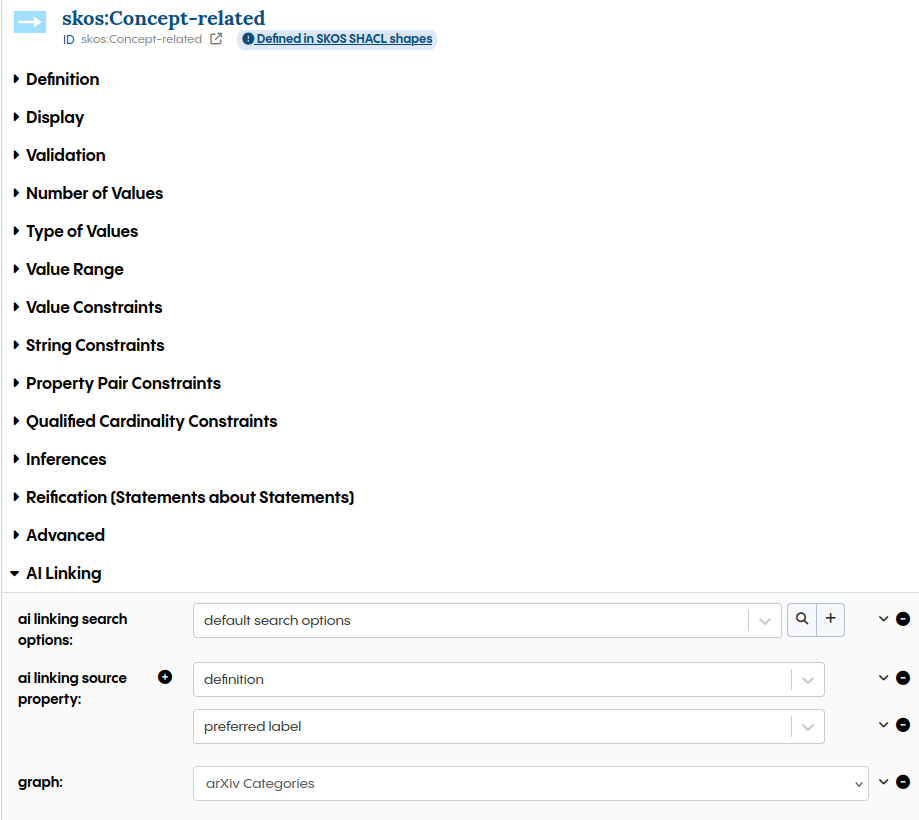
Copilot Linking must be configured in the property shape in an ontology. The following example shows how to enable Copilot Linking for the related property of SKOS Concept. The content of the source properties is used to search for matching resources in the target asset collection. For the related property, definition and preferred label should contain the information that the target should match. In other cases, there could be a dedicated literal that matches better. For example, if there is already a literal for brand and Copilot Linking should add a property to a catalog of brands, that literal property should be used as the source. The asset collection that contains the target must be selected in graph. A search options data structure must be added where further settings can be configured. The search options can be used by multiple Copilot Linking property configurations.
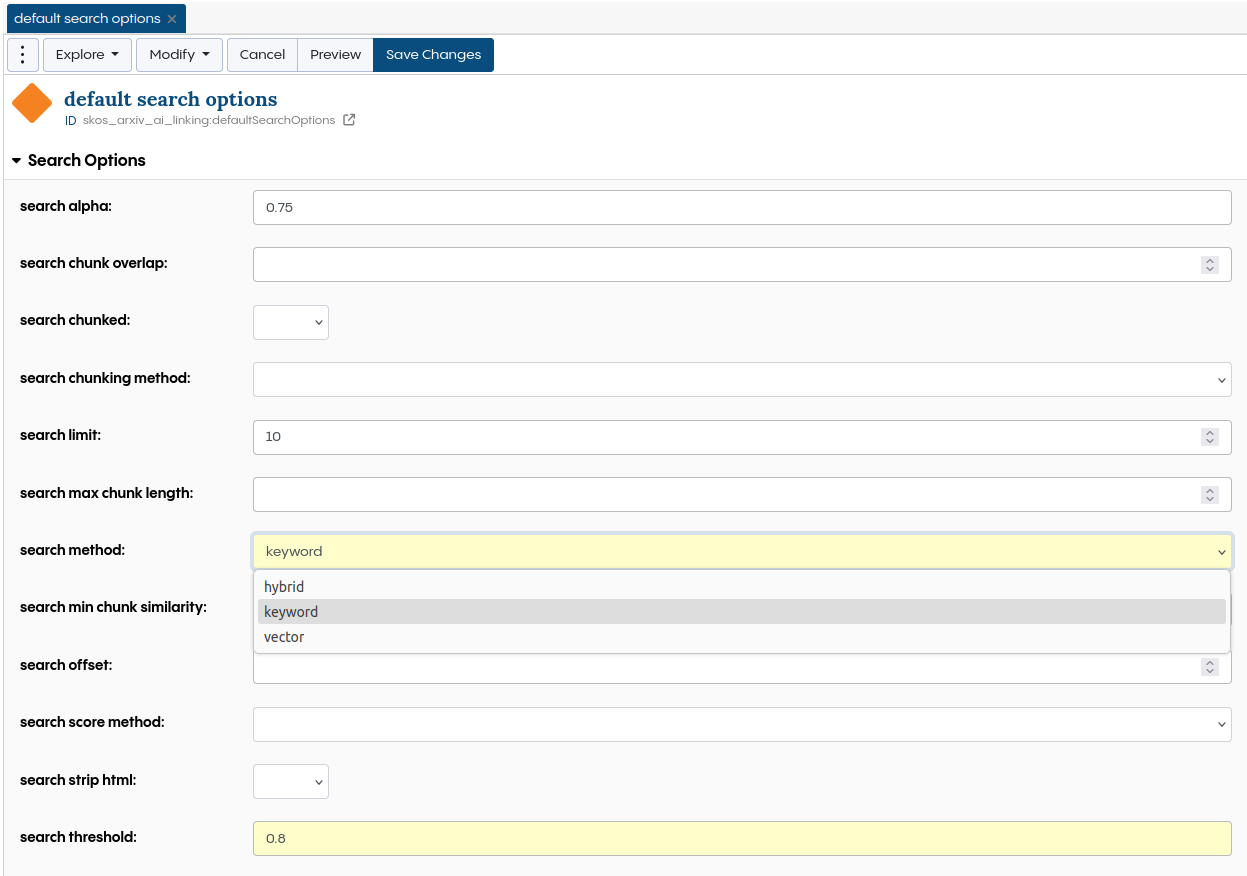
Search options can be used to tweak the search for better results. The most important settings are:
Parameter |
Description |
|---|---|
search alpha |
The relative weight of keyword and vector search for the hybrid search in the range between 0 and 1. 0 is pure keyword search, and 1 is pure vector search. As the hybrid search includes a normalization step, setting this value to 0 or 1 may not give the same result as changing the method to keyword or vector. |
search limit |
The upper limit of results that will be shown. |
search method |
The search method used by the Vector Index. - exactPhraseMatch uses the keyword search to find full matches of a phrase. For example, New York doesn’t match York, only New York. - hybrid combines the results of keyword and vector. It gives a high probability to exact matches and adds semantic similarity to the mix. As it gives the best results for most use cases, it’s used as default. - keyword uses BM25 to rank exact matches. - vector uses the configured embedding model to calculate the cosine similarity as base for the probability. |
search threshold |
A threshold value for the search score. Only results with a score value greater or equal to the threshold will be shown. |
Note
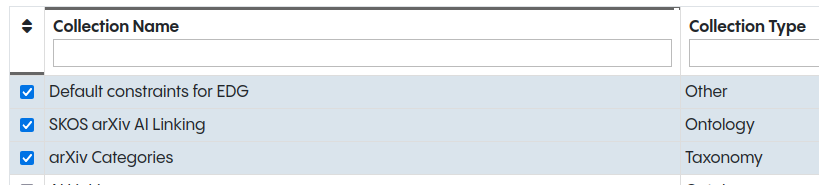
A separate ontology asset collection should be used for the Copilot Linking configuration if the underlying ontology is generic and not designed for a single target. The ontology for the configuration can be added under Settings → Includes, like in the following example where SKOS arXiv AI Linking contains the Copilot Linking configuration.
Applying Copilot Linking suggestions
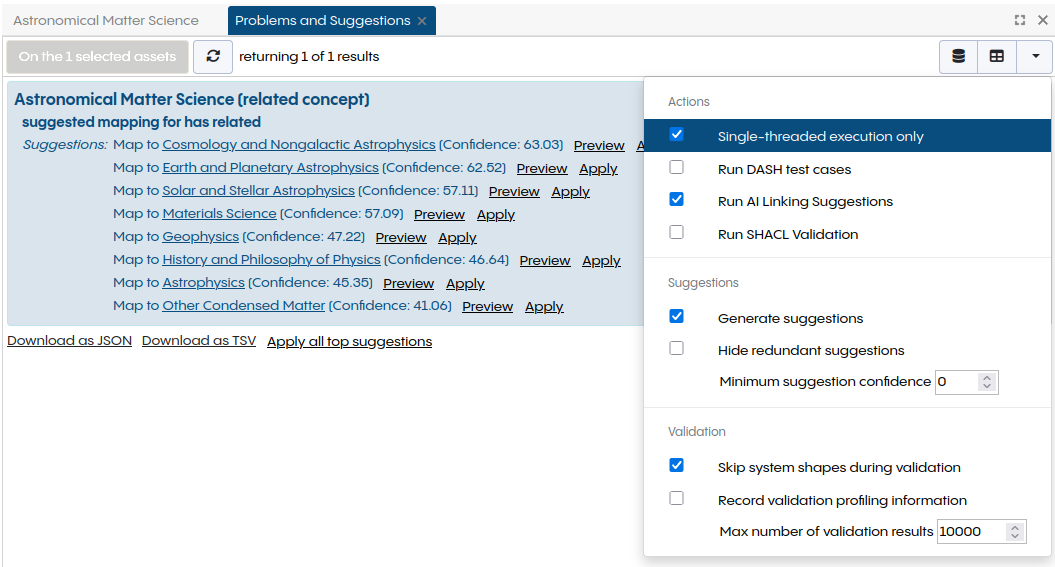
Copilot Linking based suggestions are shown in the Problems and Suggestions panel. Run AI Linking Suggestions must be enabled in the dropdown menu on the top right. It can be used combined with other actions. If this is not wanted, all other Run actions should be unchecked. The Apply button will create the suggested property. If the property shape allows multiple values, multiple suggestions can be applied.
Note
Problems and Suggestions can be triggered for smaller batches using batch actions. In the tree of the Taxonomy Concepts panel, batch actions can be triggered in the dropdown menu that opens on right click.
Use Copilot Natural Language to SPARQL
Enable the Copilot Natural Language to SPARQL Feature
To enable the Natural Language to SPARQL feature for an asset collection, the ontology and the asset collection must each be indexed with the Vector Index, and a Natural Language to SPARQL configuration must be created. It is recommended to use the configuration wizard for this, see Natural Language to SPARQL Configuration Wizard. For advanced setups, the configuration can also be created manually, see Manual Configuration.
Natural Language to SPARQL Configuration Wizard
The configuration wizard guides you through all steps that are needed to enable the Natural Language to SPARQL feature for an asset collection, including the Vector Index of the ontology and of the asset collection.
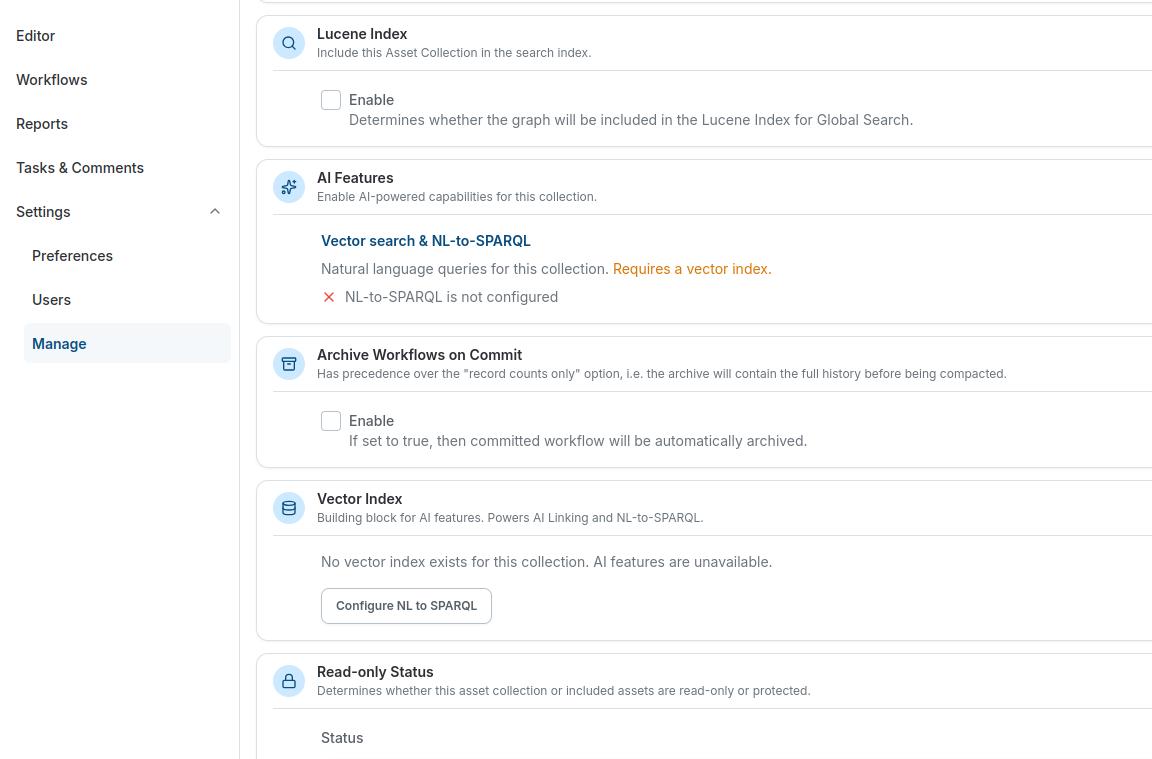
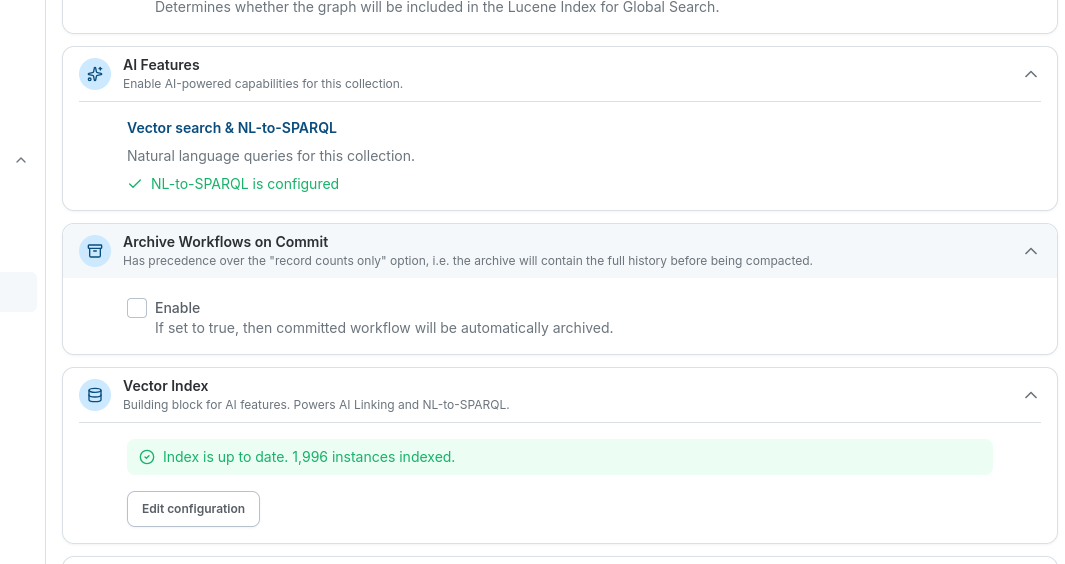
It is opened from the asset collection page under Settings > Manage. The AI Features section shows whether Natural Language to SPARQL is already configured, and the Vector Index section provides the Configure NL to SPARQL button that starts the wizard.
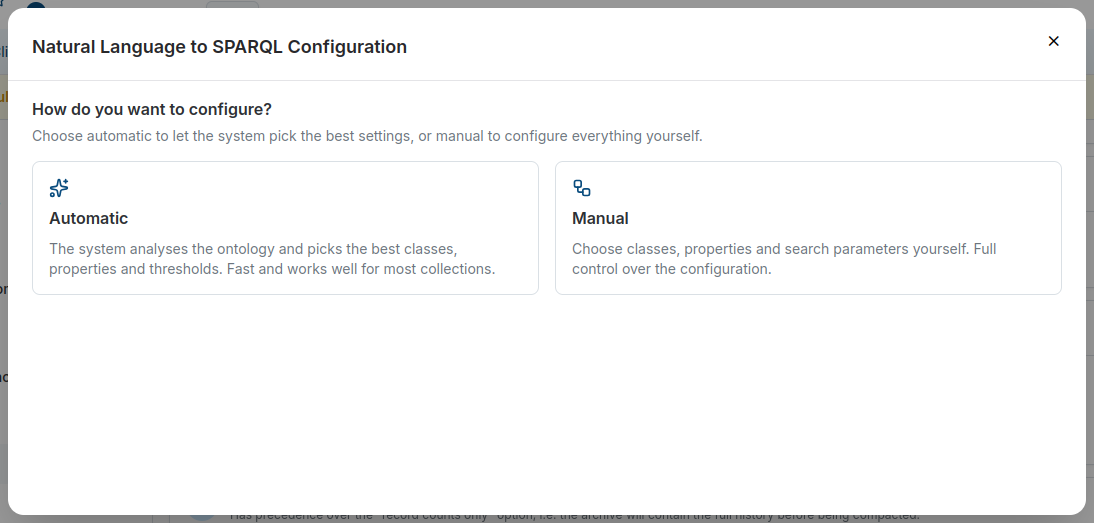
The wizard first asks how you want to configure the feature:
Automatic: The system analyses the ontology and picks the best classes, properties and thresholds. This is fast and works well for most collections.
Manual: You choose classes, properties and search parameters yourself, which gives full control over the configuration.
In both cases the wizard creates the Vector Index configurations and the Natural Language to SPARQL configuration, and then starts the indexing tasks in the background.
Automatic Wizard Configuration
After choosing Automatic, select the Ontology that should be used to generate the SPARQL queries. The list contains the ontologies that are imported by the current asset collection. Classes and properties are then selected automatically based on their relevance, and can be adjusted later with the manual configuration.
Under Advanced settings, the following options can be tweaked:
Class threshold: The minimum number of instances that a class must have to be included.
Property threshold: The minimum number of instances that must use a property for it to be included.
Clear the existing configuration: Removes any existing Natural Language to SPARQL and Vector Index configurations on both the ontology and the asset collection before the new ones are created.
Push existing data: Builds the Vector Index for both the ontology and the asset collection immediately after the configuration has been created. Disable this option to review and tweak the generated configuration before the indexing is triggered.
Both thresholds serve to keep noise out of the indexed data, so that internal system data, such as the definition of the asset collection or its settings, does not end up in the Vector Index alongside the actual assets. The default values work for most cases. For very small datasets, however, it may be necessary to lower the thresholds, as otherwise too few classes and properties are selected.
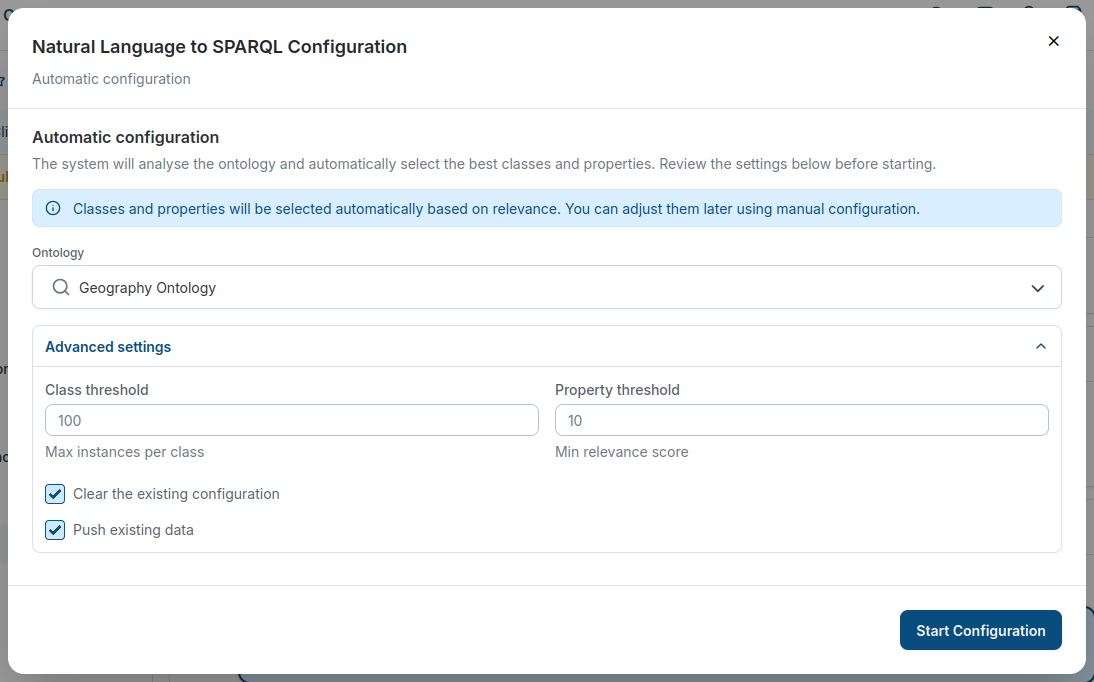
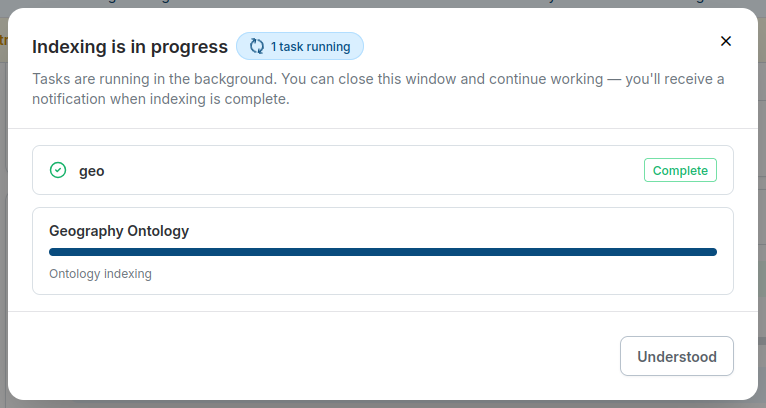
Press Start Configuration to create the configuration and start the indexing. The wizard shows the progress of the indexing tasks for the asset collection and for the ontology. The indexing runs in the background, so the window can be closed and you will receive a notification once it is complete.
When all tasks are complete, the Manage settings report that Natural Language to SPARQL is configured and that the Vector Index is up to date, including the number of indexed instances.
Manual Wizard Configuration
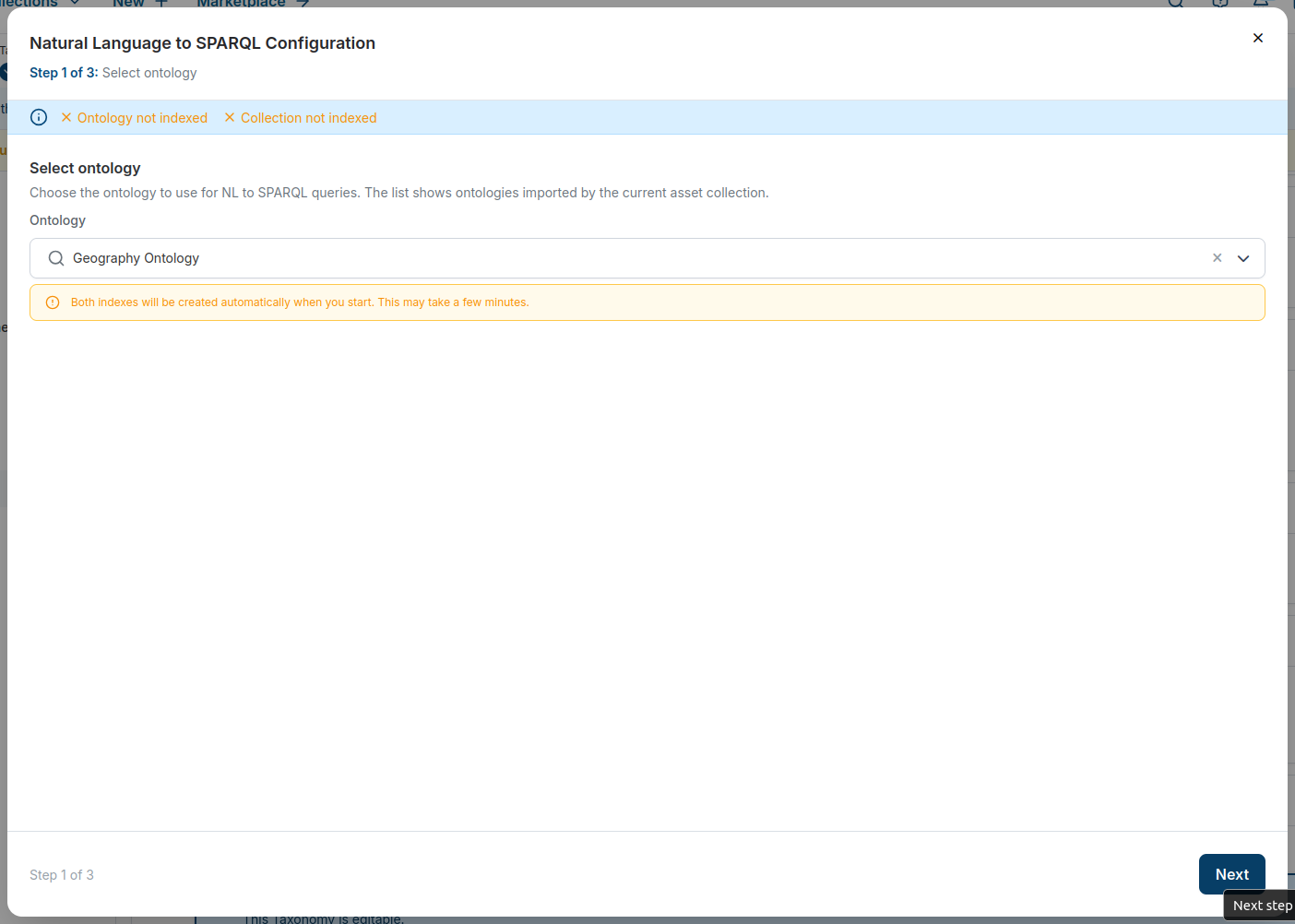
After choosing Manual, the wizard walks through three steps. The banner at the top of each step shows whether the ontology and the asset collection are already indexed.
Step 1: Select ontology
Select the ontology that should be used for the Natural Language to SPARQL queries. The list contains the ontologies that are imported by the current asset collection. If the ontology or the asset collection is not indexed yet, the wizard points out that the missing indexes will be created automatically when the configuration is started.
Step 2: Configure
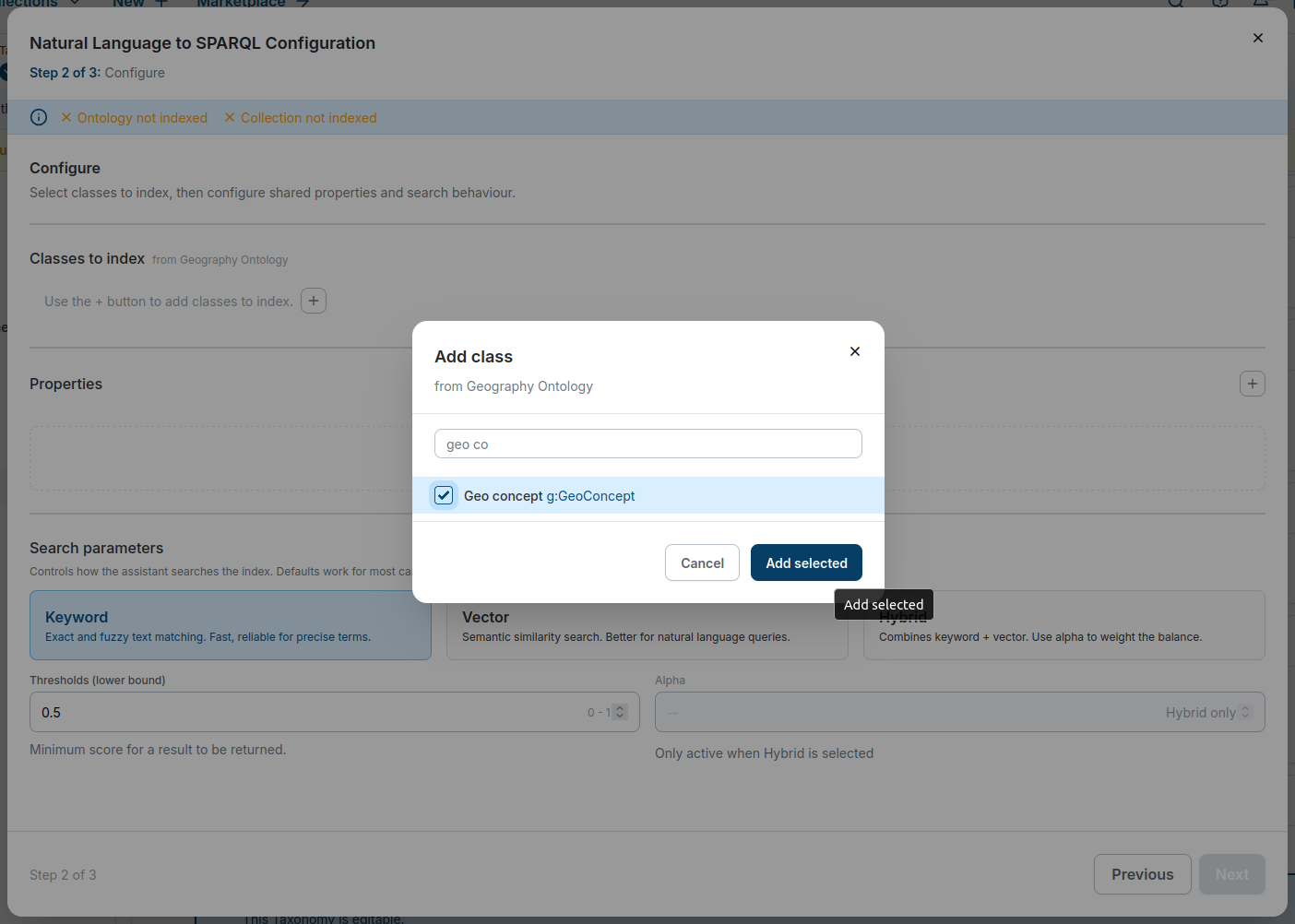
Select the classes that should be indexed with the + button next to Classes to index. The classes are taken from the selected ontology, and the number of instances in the asset collection is shown next to each selected class.
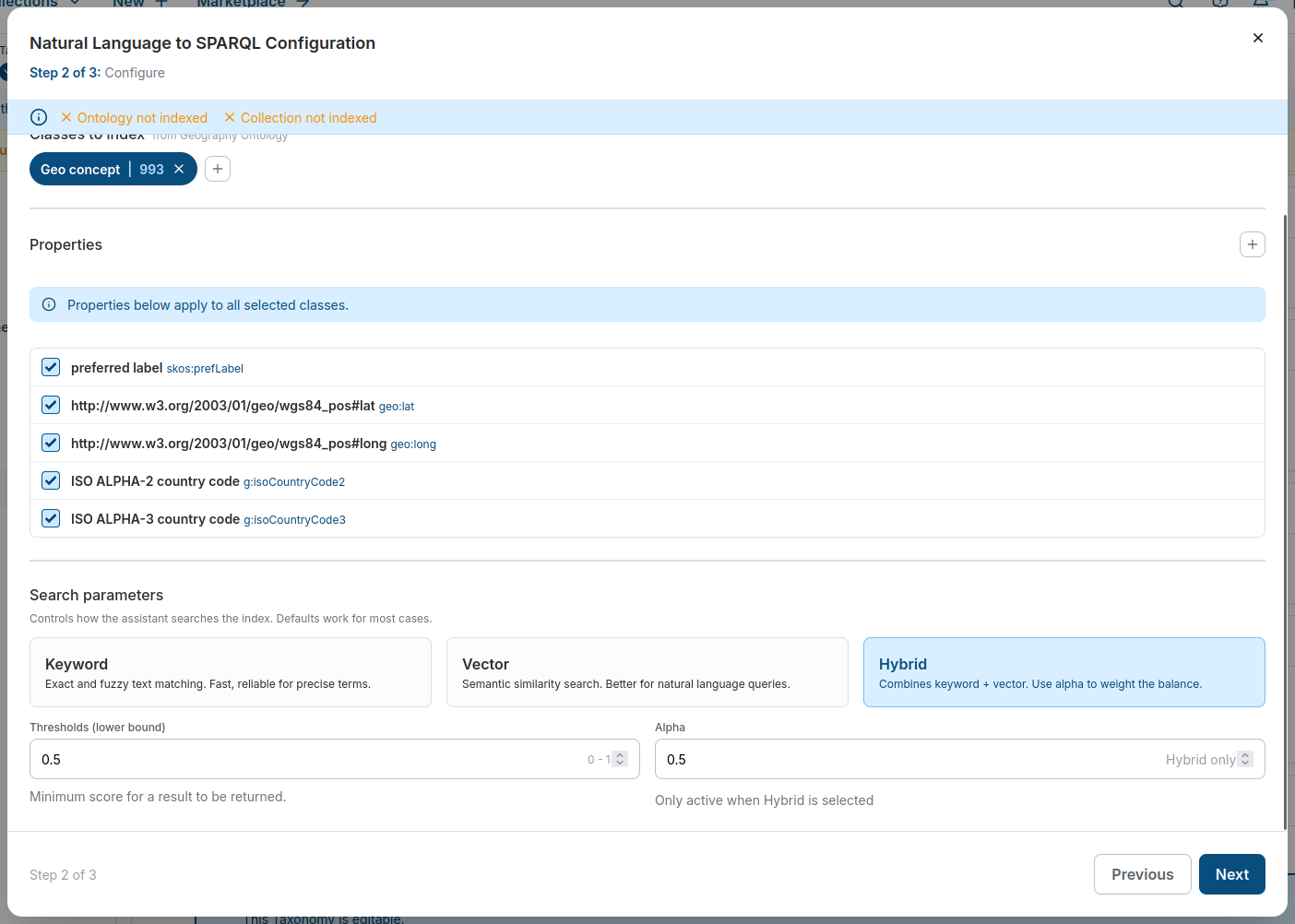
The Properties section lists the properties that are indexed for all selected classes. Select the properties for labels, names, descriptions, comments, and identifiers, and deselect the ones that are not relevant for querying.
The Search parameters control how the assistant searches the index:
Keyword: Exact and fuzzy text matching, which is fast and reliable for precise terms.
Vector: Semantic similarity search, which is better for natural language queries.
Hybrid: Combines keyword and vector search, where the Alpha value weights the balance between the two.
The Thresholds (lower bound) value is the minimum score that a result must reach to be returned, and can be raised to reduce noise in the results. The defaults work for most cases.
Step 3: Review and start
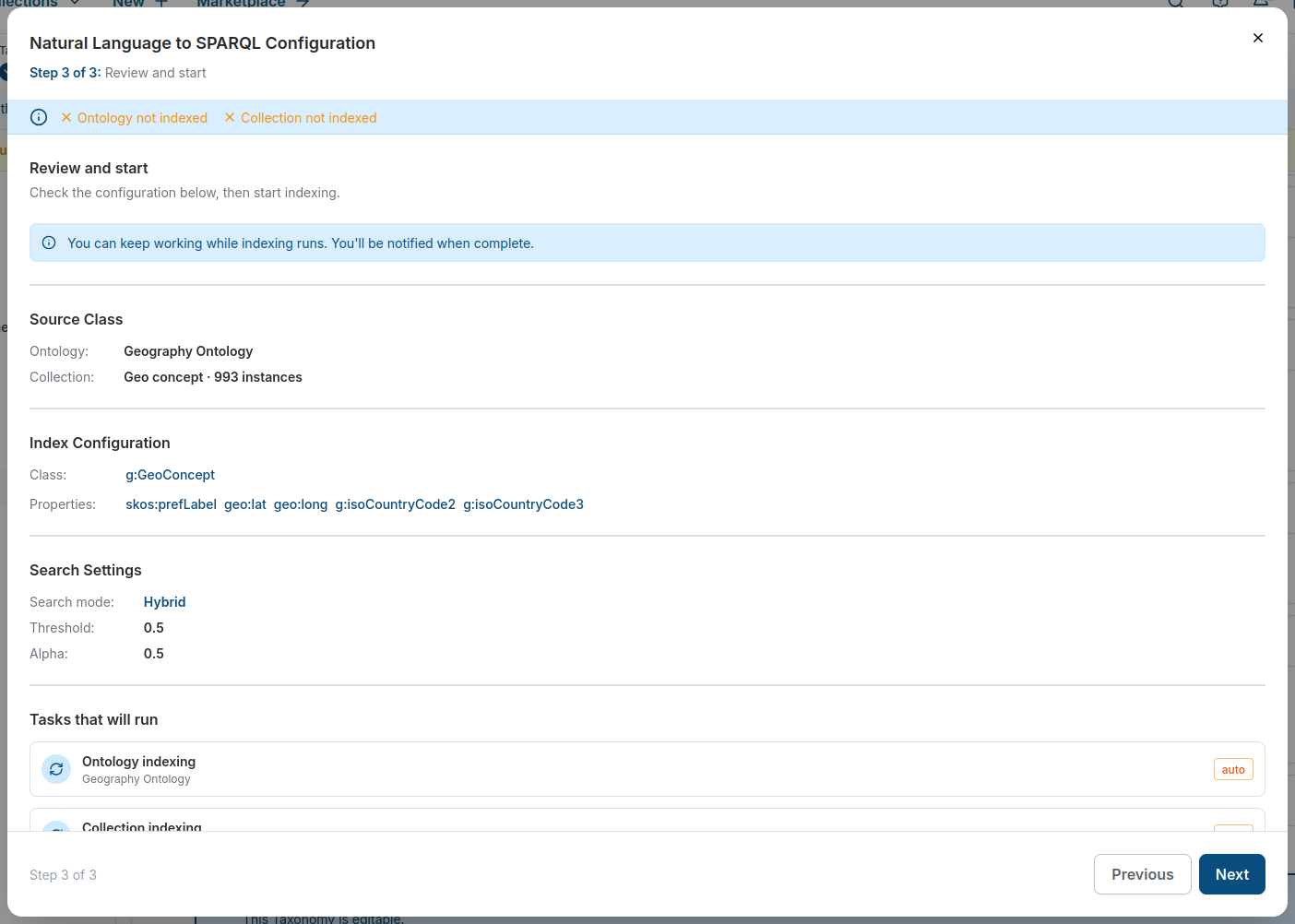
The last step summarizes the selected ontology and class, the resulting index configuration, the search settings, and the indexing tasks that will run.
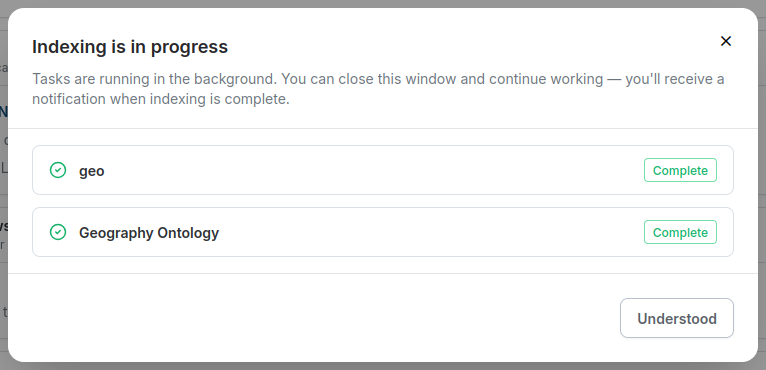
Starting the configuration creates the configurations and runs the indexing tasks in the background, in the same way as the automatic configuration. A notification is shown once the indexing is complete.
Manual Configuration
For advanced setups, the configuration can also be created manually as an alternative to the configuration wizard, see Natural Language to SPARQL Configuration Wizard.
Configure the Vector Index for the Ontology
To enable the Copilot Natural Language to SPARQL feature for an asset collection, it is necessary to index the ontology that is used. It requires configuring a predefined list of classes and properties in the ontology. This is required for finding relevant classes and properties for a given prompt. For more details on how to configure the Vector Index, please refer to Enabling the Vector Index for an Asset Collection.
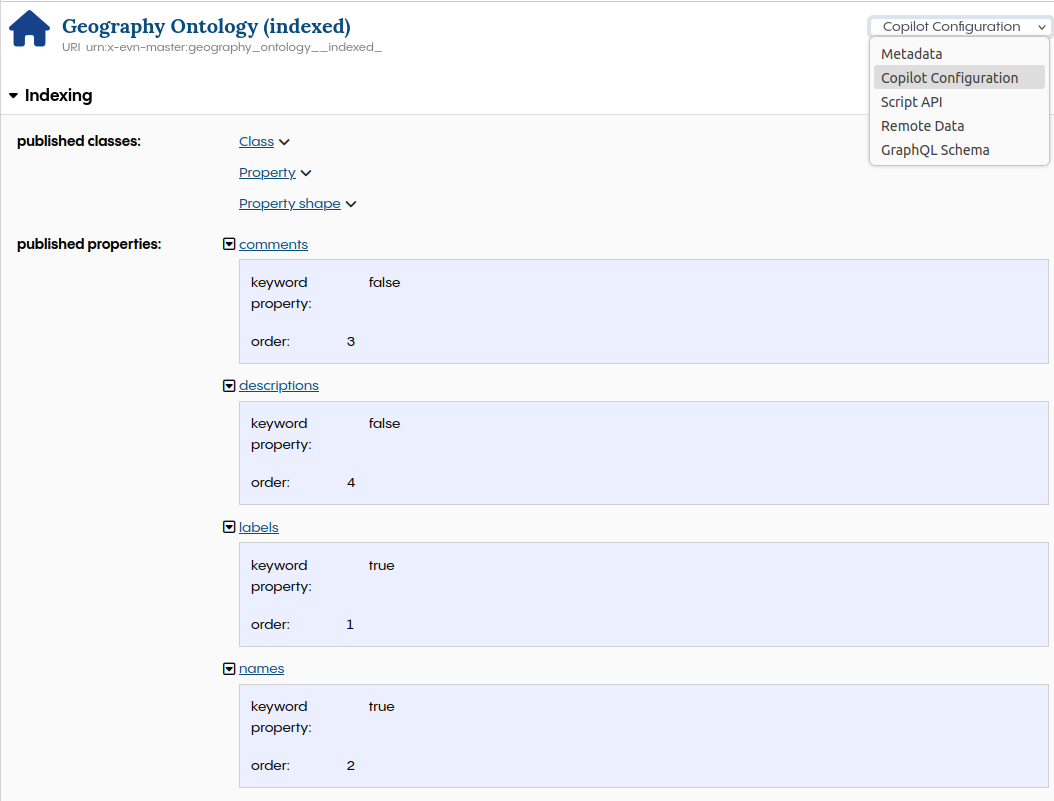
The following classes must be configured:
Class:
owl:ClassProperty (
rdf:Property)Property Shape (
sh:PropertyShape)
And the following properties must be configured:
labels:
rdfs:label, order 1, keyword truenames:
sh:name, order 2, keyword truecomments:
rdfs:comment, order 3, keyword falsedescriptions:
sh:description, order 4, keyword false
The configuration should look like this:
Configure the Vector Index for the Asset Collection
It’s also required to configure the Vector Index for the asset collection that should be queried. There is no predefined configuration for that use case. The classes should be selected to cover all relevant resources that could be queried, while avoiding classes from imported asset collections that generate noise or represent irrelevant metadata. Properties for labels, names, descriptions, comments, and identifiers should be selected. For more details, see the Vector Index documentation.
Configure Natural Language to SPARQL for the Asset Collection
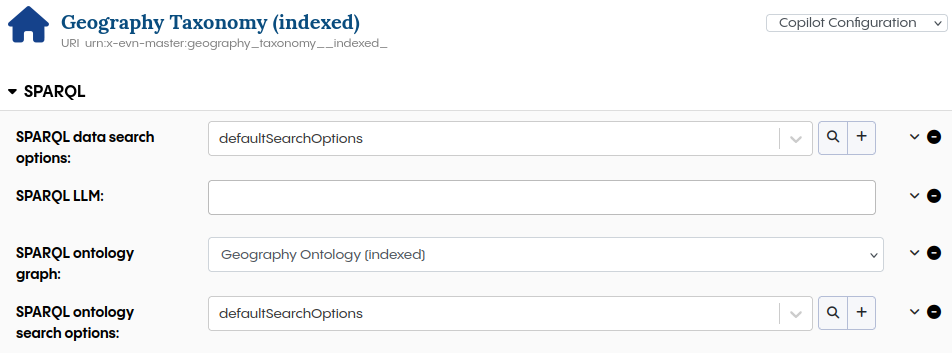
It’s mandatory to configure the SPARQL ontology graph. Select the ontology that has been configured for the Vector Index in the previous step. Optionally, tweak the SPARQL data search options and SPARQL ontology search options, like set a threshold to reduce the noise in the results or change the alpha value to give different weight to keyword and vector search results. It’s possible to select an alternative SPARQL LLM (Large Language Model), but the default model is recommended for most use cases.
Use the Copilot Natural Language to SPARQL Feature
Once configured, Natural Language to SPARQL is available through Copilot Chat and the SPARQL Query panel.
Generate queries in Copilot Chat
In the collection editor, open Copilot and select + > Chat modes > Generate a SPARQL query. Describe what you want to find. Copilot places the generated query in the SPARQL Query panel for you to review and run. You can send follow-up requests to refine it, select New for an independent query thread, or use Undo last query edit in the panel to undo a replacement. See Generate and refine a SPARQL query for the full steps.
Generate queries in the SPARQL Query panel
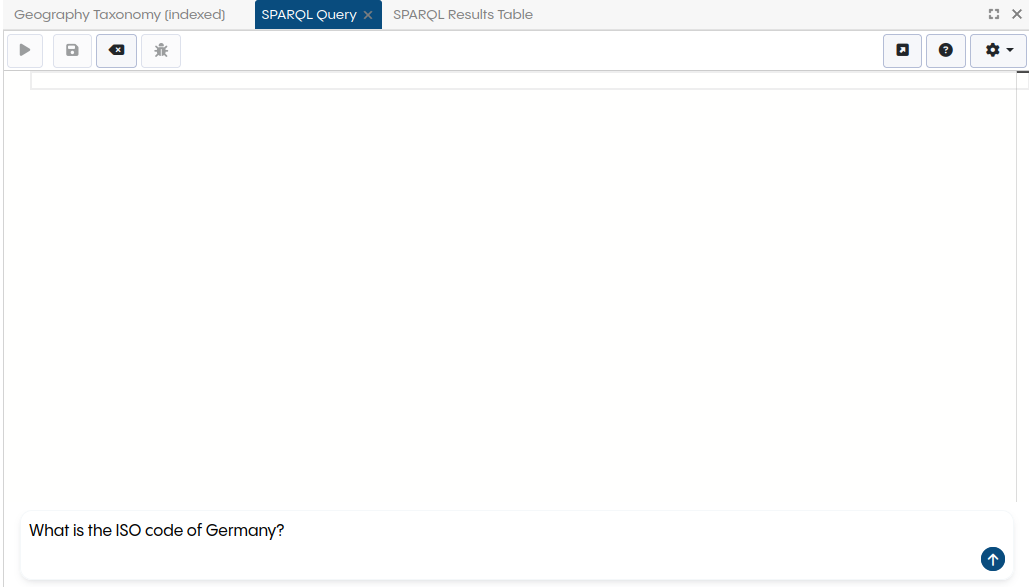
You can also generate a query directly from the SPARQL Query panel. An additional input field appears at the bottom of the SPARQL Query panel, where you can enter your prompt. After entering your prompt, press the arrow up button to generate the SPARQL query. Please note that it may take a short while for the query to be generated.
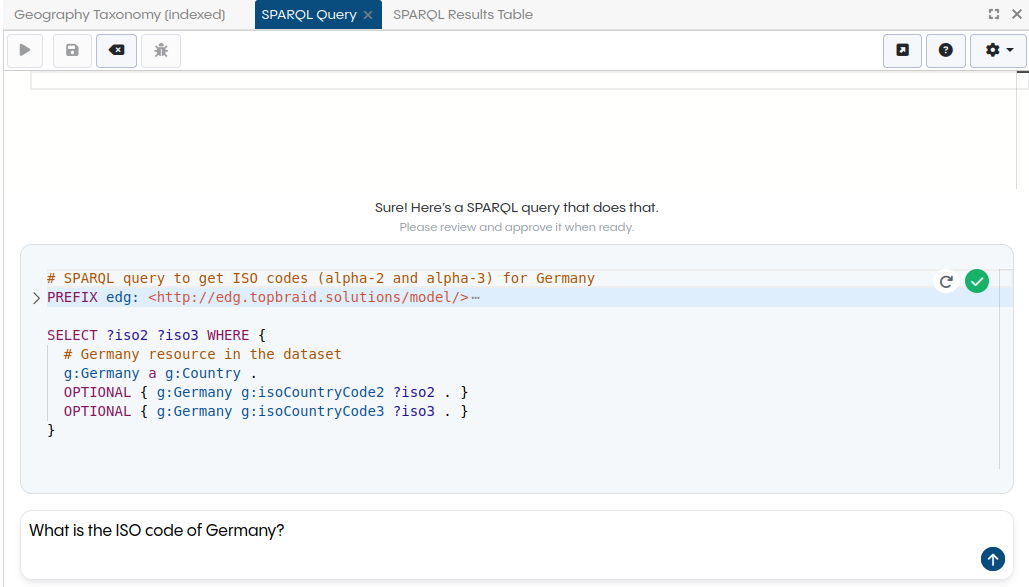
Once generated, the query appears in a separate box for your review. Since generating the query is not deterministic, there is a button to regenerate the query if the initial result is not satisfying. If you are satisfied with the generated query, you can transfer it to the main SPARQL query editor by pressing the green accept button.
Use Copilot Tagging Content
Any asset collection for which the Vector Index has been enabled can be used by the AutoClassifier in the Content Tag Set. Unlike using Maui Server, this method doesn’t require a training step.
See also
See Content Classification in TQ Data Foundation for a detailed guide on content classification.
After creating a Content Tag Set, the AutoClassifier must be configured.
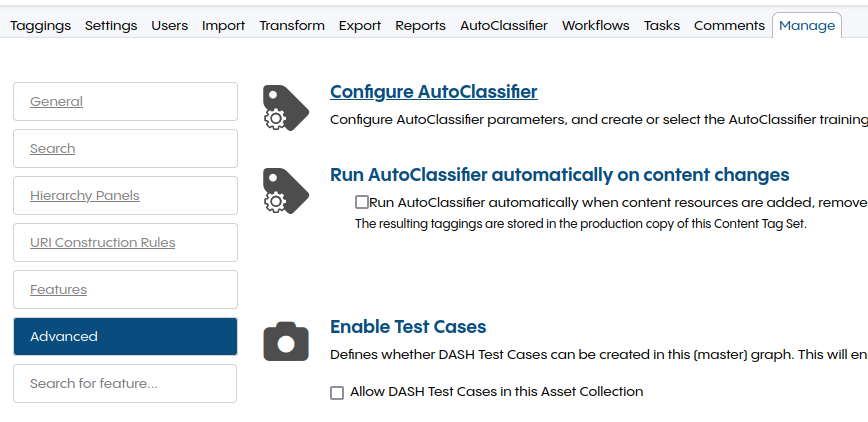
Go to Manage, Advanced, Configure AutoClassifier.
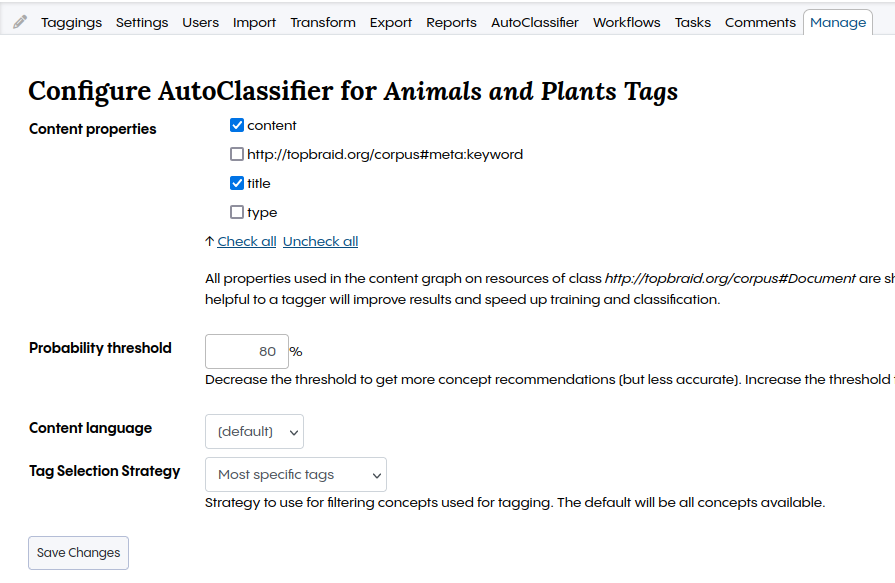
Under Content properties, select all properties with content that should be used by the AutoClassifier.
In this example, content and title are used but other properties like filename can be of interest if the documents have meaningful filenames.
The Tag Selection Strategy acts as a filter on the concepts of the taxonomy.
In this example, only the most specific tags are used to ignore concepts with child nodes.
The Probability threshold must be adapted to the Content Tag Set.
Each combination of a corpus and a taxonomy has their own reasonable threshold.
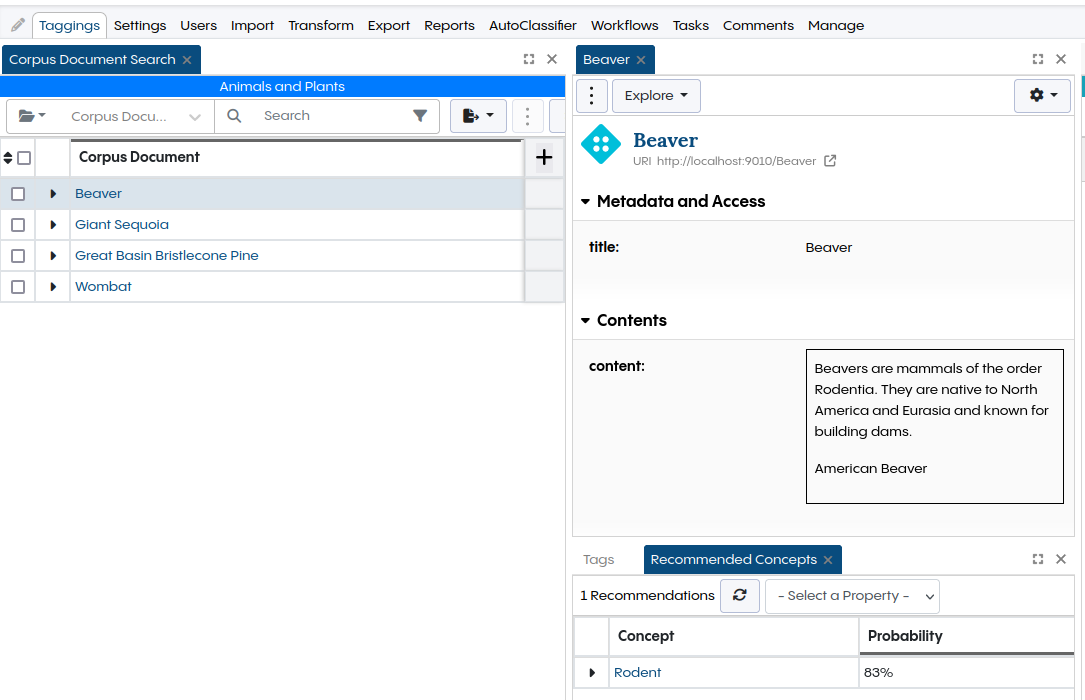
Check some documents in the Taggings tab to find a good threshold value.
Once finished, press the Save Changes button.
The Taggings tab should show documents from the corpus.
Select one to see concepts found by the AutoClassifier in Recommended Concepts.